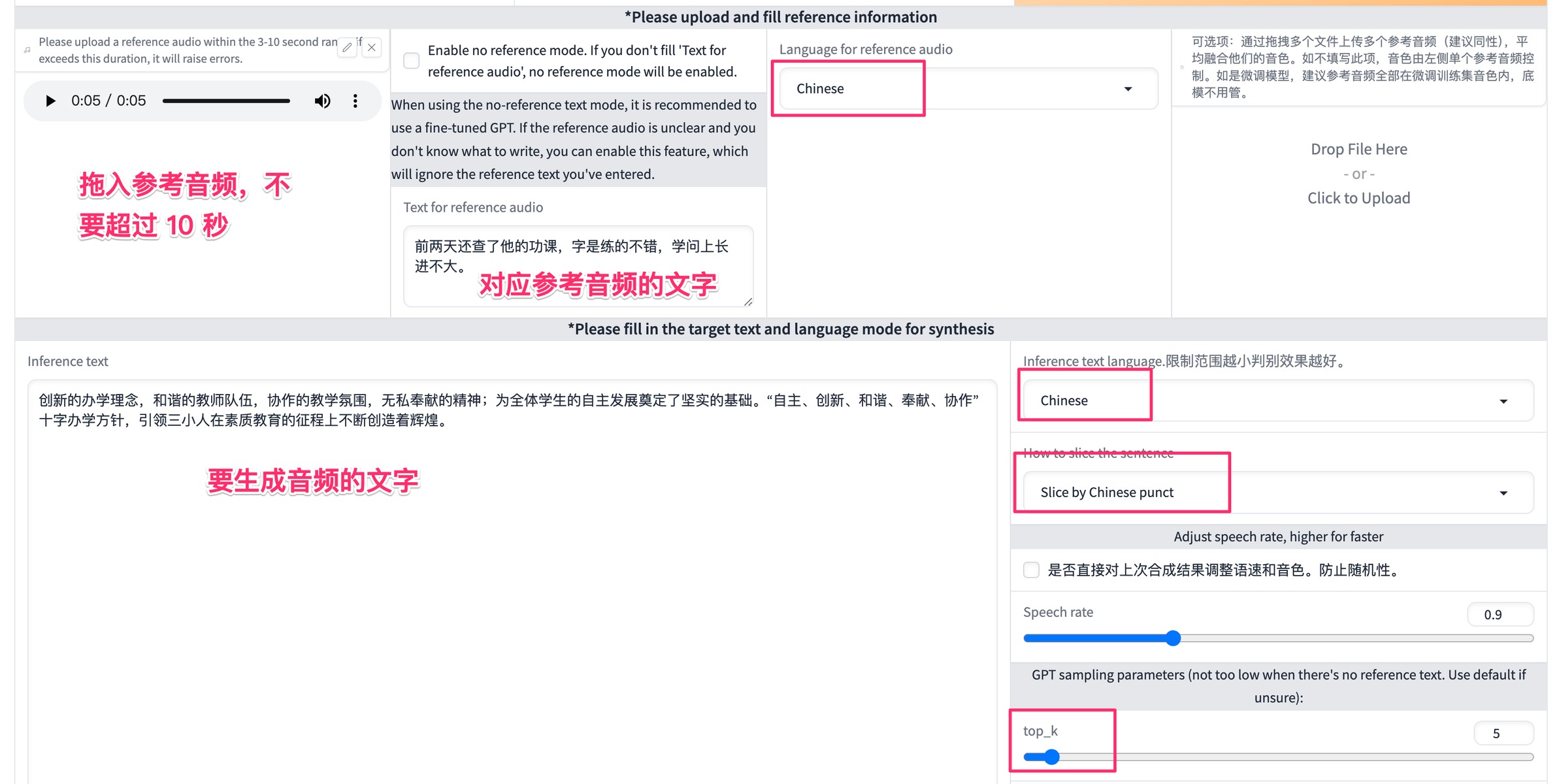
GPT-SoVITS 训练
1 流程
- 安装 GPT-SoVITS
- 获取音频文件
- Davinci 做人声分离、统一电平
- 切片
- asr 打标
- 训练
- 推理
2 安装 GPT-SoVITS
conda create -n GPTSoVits python=3.9
conda activate GPTSoVits

git clone https://github.com/RVC-Boss/GPT-SoVITS
cd GPT-SoVITS
pip install -r requirements.txt

cd GPT_SoVITS/pretrained_models
git clone https://huggingface.co/lj1995/GPT-SoVITS
mv GPT-SoVITS/*.* ./
rmdir GPT-SoVITS
cd ../text
wget https://paddlespeech.bj.bcebos.com/Parakeet/released_models/g2p/G2PWModel_1.1.zip
unzip G2PWModel_1.1.zip
rm G2PWModel_1.1.zip
mv G2PWModel_1.1 G2PWModel
cd ../../tools/uvr5/uvr5_weights
git clone https://huggingface.co/lj1995/VoiceConversionWebUI
#!/bin/bash

export CUDA_VISIBLE_DEVICES=0

source /root/miniconda3/bin/activate GPTSoVits
cd /home/GPT-SoVITS
python webui.py
3 获取音频文件
使用losslesscut 做切割
https://github.com/mifi/lossless-cut
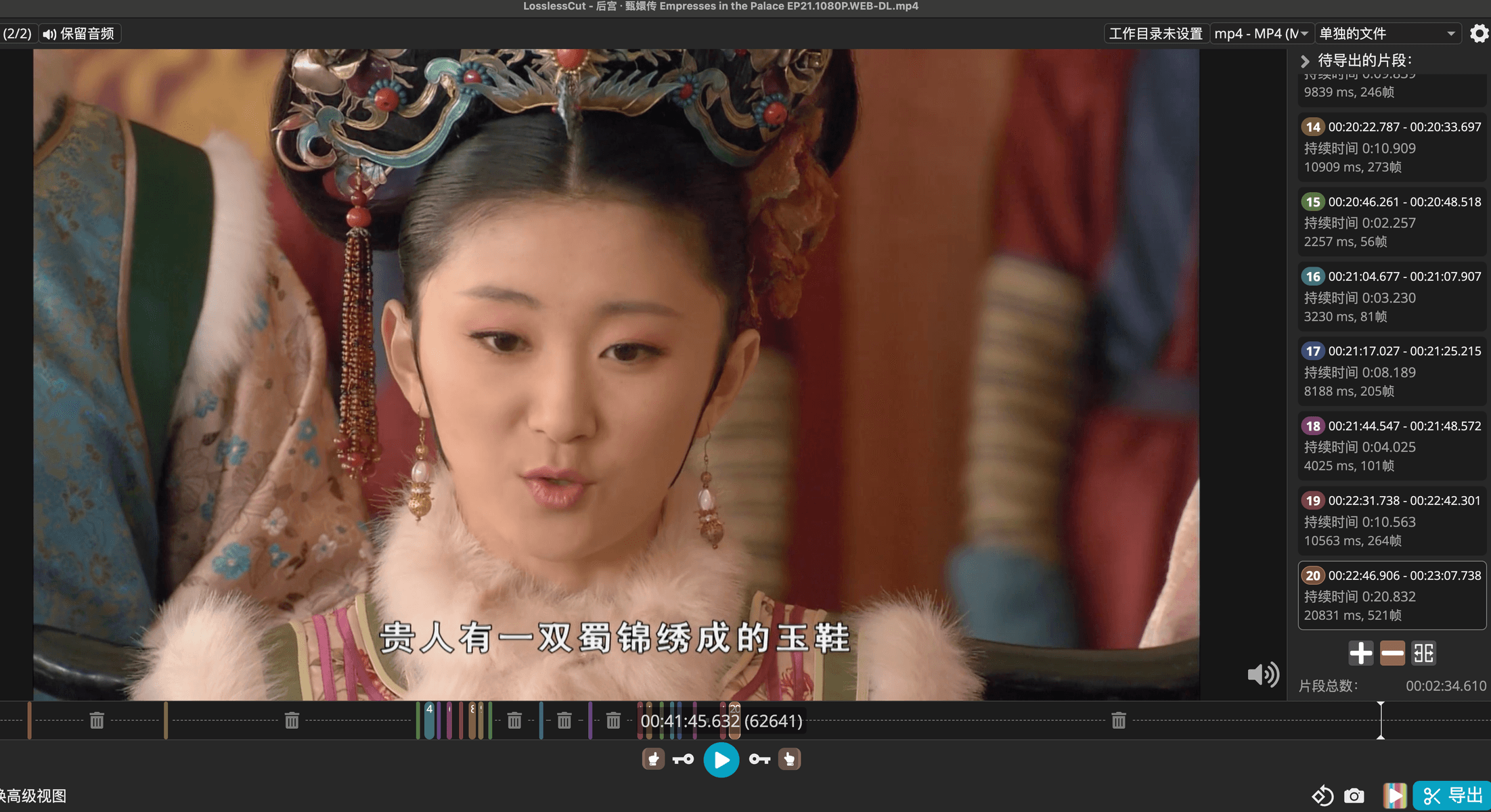
每个片段不要超过 30 秒
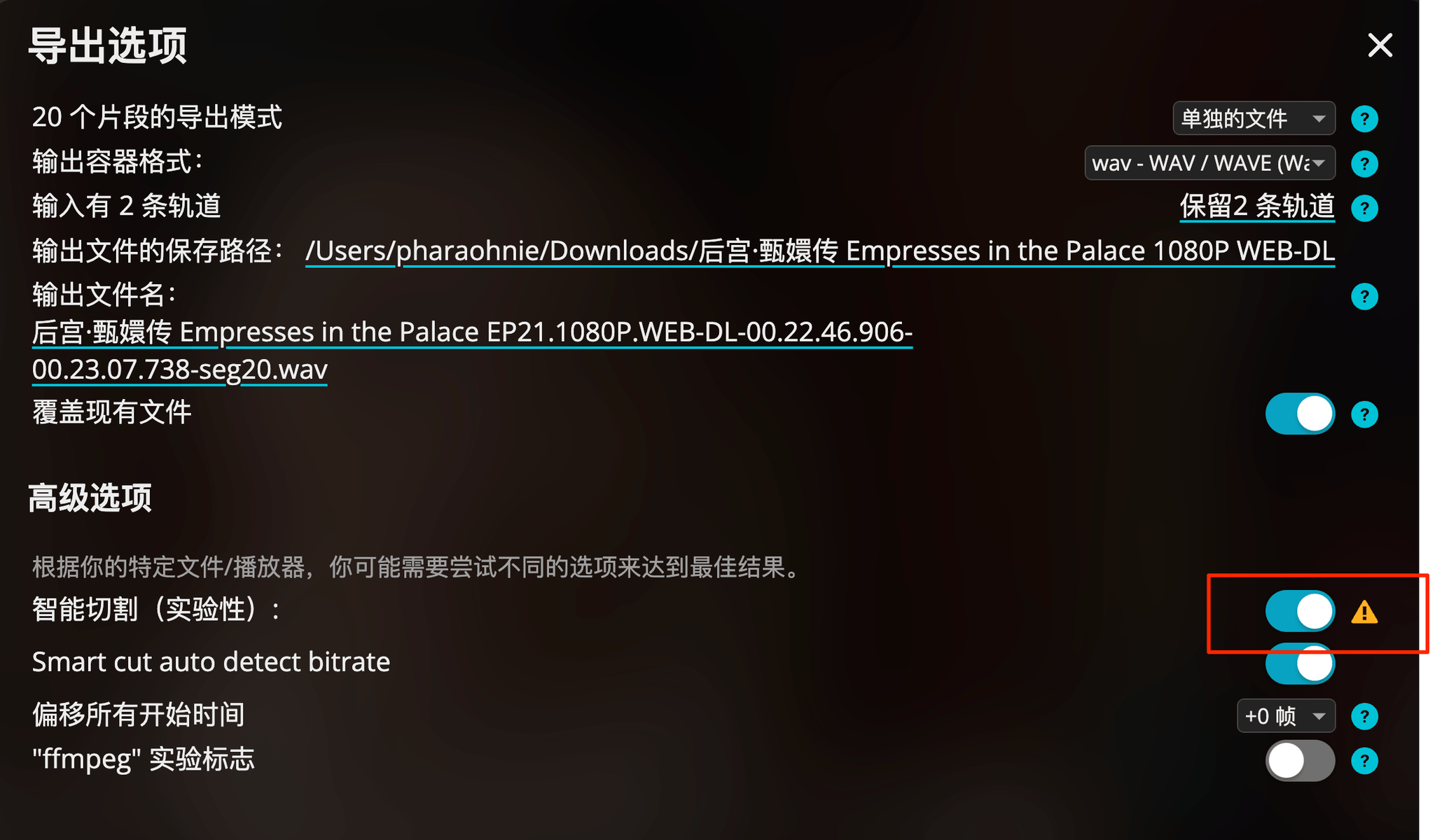
导出时选择智能切割。
该脚本可以用来统计当前目录下所有分段视频文件的总时长
#!/bin/bash

# 初始化总时长变量
total_duration=0

# 遍历当前目录下的所有MP4文件
for file in *.mp4 *.mkv; do
  if [[ -f "$file" ]]; then
      # 使用ffprobe获取文件时长(以秒为单位)
      duration=$(ffprobe -v error -select_streams v:0 -show_entries format=duration -of default=noprint_wrappers=1:nokey=1 "$file")

      # 将时长累加到总时长变量中
      total_duration=$(echo "$total_duration + $duration" | bc)
  fi
done

# 输出总时长(以秒为单位)
echo "当前目录下所有MP4文件的总时长为:$total_duration 秒"

# 如果需要输出为小时、分钟、秒的格式,可以使用以下命令
hours=$(echo "$total_duration/3600" | bc)
minutes=$(echo "($total_duration%3600)/60" | bc)
seconds=$(echo "$total_duration%60" | bc)
echo "总时长为:${hours}小时${minutes}分钟${seconds}秒"
这个脚本可以把提取 wav 文件,并用00001.wav, 00002.wav的方式重命名
#!/bin/bash

# 检查 ffmpeg 是否已安装
if ! command -v ffmpeg &> /dev/null
then
    echo "ffmpeg 未安装,请先安装 ffmpeg。"
    exit
fi

# 设置文件计数器
counter=1

# 遍历当前目录中的所有 MP4 文件
for file in *.mp4
do
    # 生成目标文件名,格式为 00001.wav, 00002.wav, ...
    output=$(printf "%05d.wav" $counter)

    # 提取音频并保存到目标文件
    ffmpeg -i "$file" -q:a 0 -map a "$output"

    # 计数器增加
    counter=$((counter + 1))
done

echo "音频提取完成。"
4 Davinci 人生分离、统一电平
对比过了 GPT-Sovitsz 自带 UVR5 和 Ultimate Vocal Remover,效果都不太好。
在 剪辑 中,将所有音频文件拖入 Davinci
全选 -> 新建复合片段
勾选 Voice Isolation 和 Dialogue Leveler

轨道 -> 右键 - > 轨道类型更改为 Mono
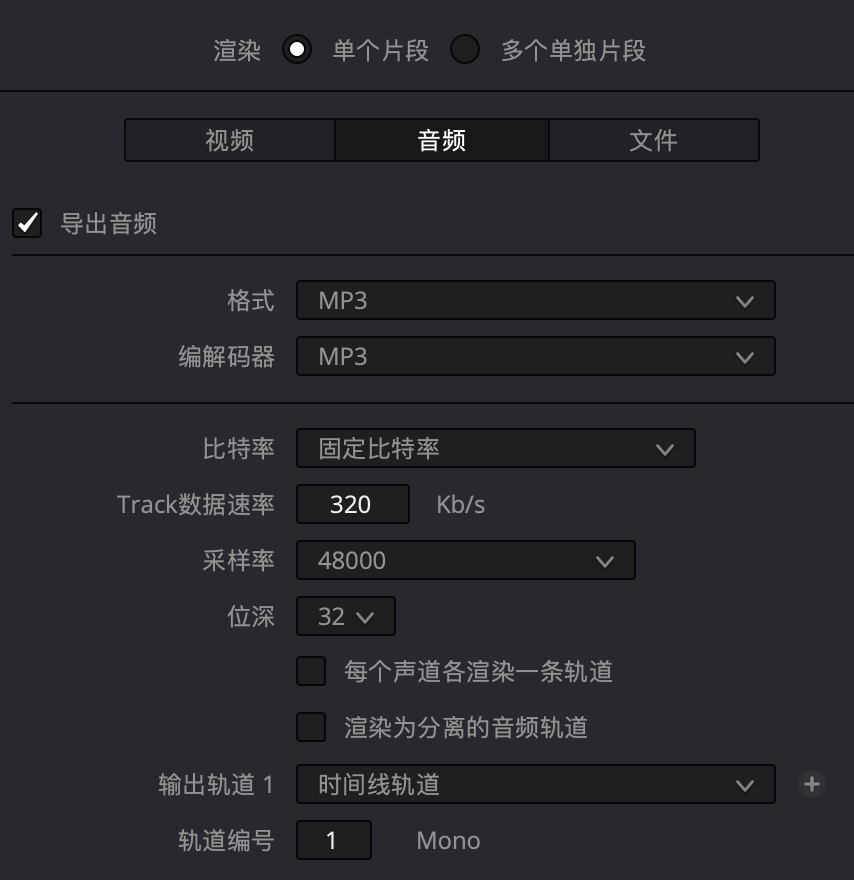
交付 -> 视频,不要勾选 导出视频
音频选项如下
5 目录结构
基础路径是 /home/GPT-SoVITS
output/
├── asr_opt     # 打标路径
├── orig        # davinci 处理过后的文件放这里
└── slicer_opt  # 切片路径
音频文件放到 output/orig 中
6 切片
在 gpt-sovits中操作
输入目录:output/orig
输出目录:output/slicer_opt
其他配置默认值就可以

7 asr 打标
打标之前不用再进行降噪了,因为 Davinci 完成了降噪工作。
输入目录:output/slicer_opt
输出目录:output/asr_opt

8 训练
设置好 model name
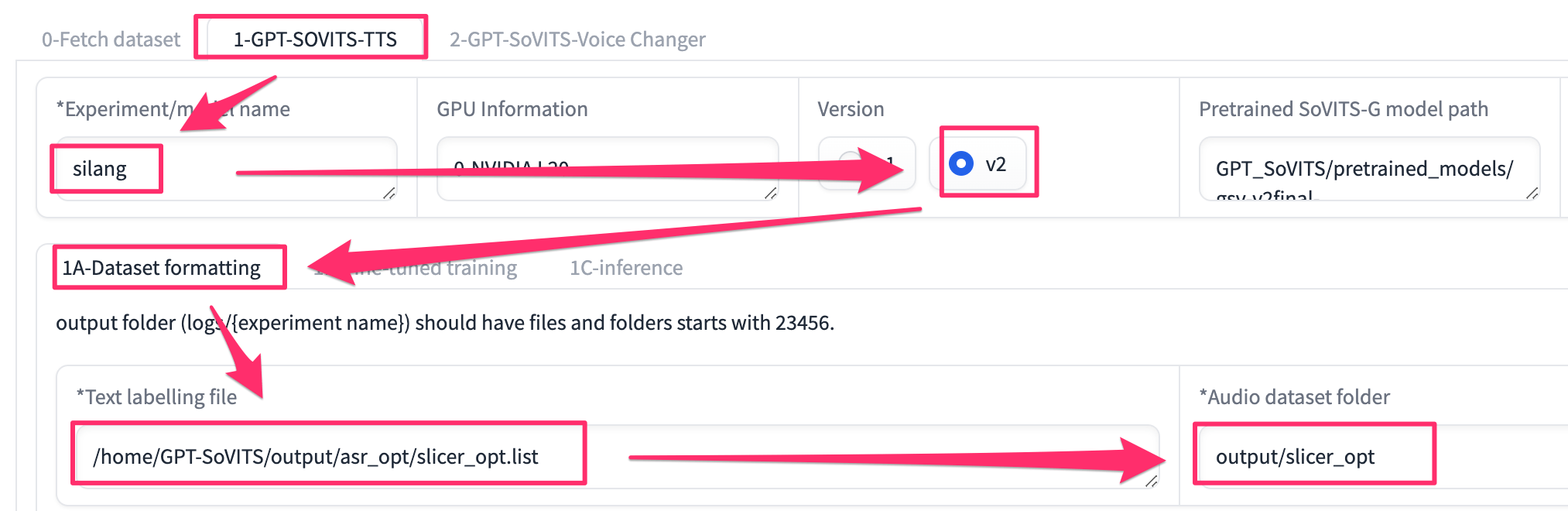
点击最下方的 One-click formatting
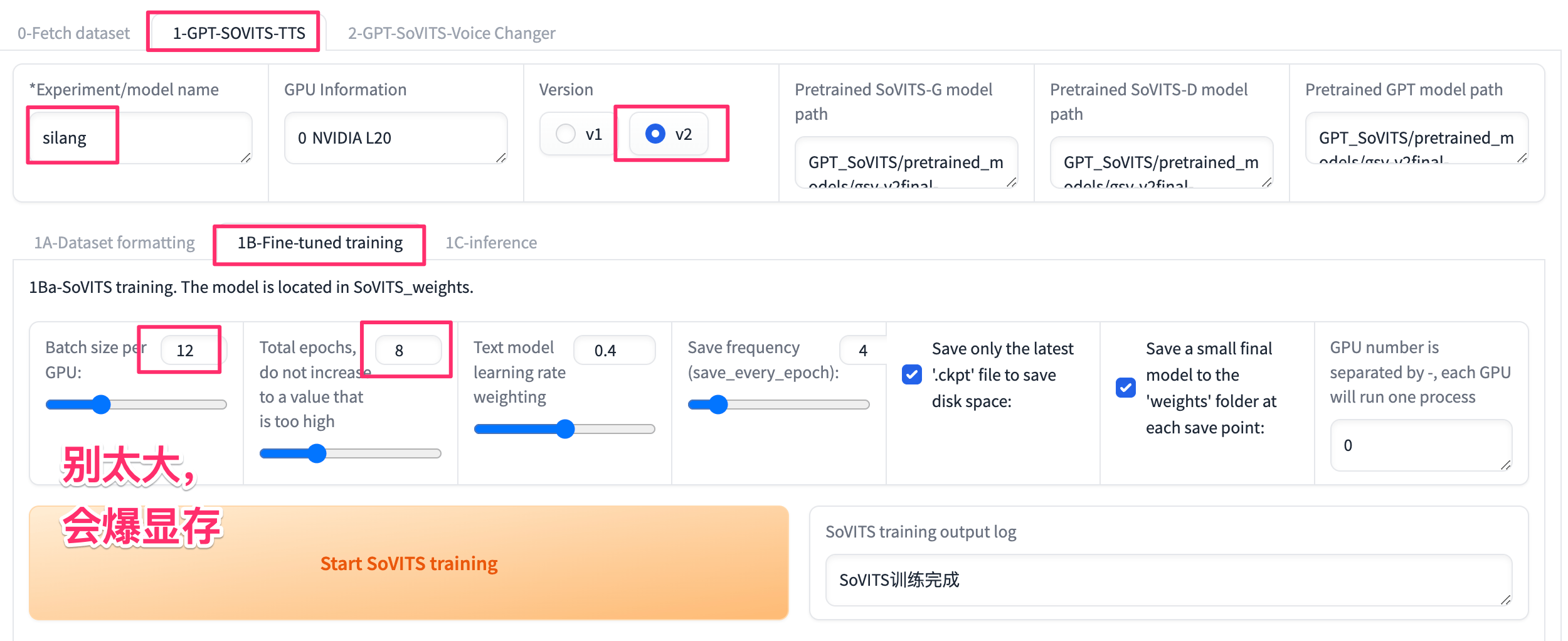
点击 Start SoVITS training
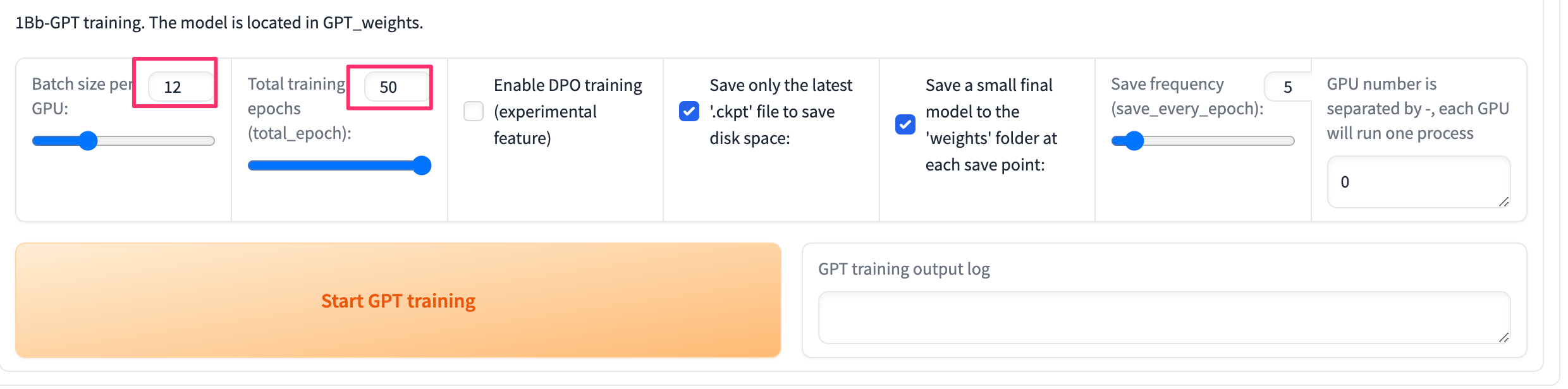
点击 Start GPT training
9 推理